
Instructions for Installation
Please follow the instructions below to download and install the software.
- Download Microsoft® Windows Vista™-compatible version of the PlayOnline Viewer
- Install Microsoft® Windows Vista™-compatible version of the PlayOnline Viewer
- Install FINAL FANTASY XI for Windows
Download Microsoft Windows Vista/Windows 7-compatible version of the PlayOnline Viewer
The size of the files to be downloaded is 60MB. The time required for the download will differ depending on the speed of your connection.
[ Instructions ]
- Please read the software license agreement carefully and click “Agree” if you consent to the terms. If you do not agree to the license agreement, the software cannot be downloaded.
- Once the download screen has been displayed, select where you would like to save the file and click “Save.”
*Depending on your operating system’s settings, a “File Download – Security Warning” window may appear. Square Enix has inspected this software and verified that there are no problems. Please confirm the file name and click “Save.”
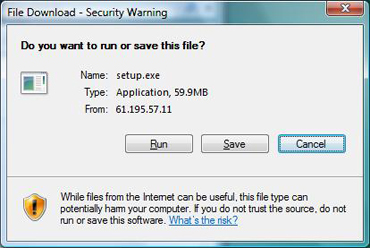
- Once the “Download complete” window has appeared, the download process is complete.
Install Microsoft Windows Vista/Windows 7-compatible version of the PlayOnline Viewer
NOTE
- If the PlayOnline viewer and FINAL FANTASY XI are already installed, they will need to be uninstalled. Select “Programs” from the Control Panel, and then select “PlayOnline Viewer” and “FINAL FANTASY XI from the “Uninstall or change a program” list. Finally, click “Uninstall.”
- If you are running memory-resident programs, there may be some problems. Please close all other applications before proceeding.
- Please install, run, and update the software from the computer’s administrator account.
[ Instructions ]
- Double click on the downloaded file, “setup.”
*Depending on the Windows PC being used, the above file may be displayed as “setup.exe.”
Also, a User Account Control window may appear. Square Enix has inspected this software and verified that there are no problems. Please confirm the file name and click “Allow.”

- The PlayOnline Viewer installation screen will appear. Please follow the onscreen instructions.
During the installation, the PlayOnline Viewer and Tetra Master Software License Agreement will appear. Please read the software license agreement carefully and click “I accept the terms of the license agreement” if you agree to the terms. If you do not agree to the terms, the software cannot be installed.

- Finally click the ”Finish” button to finish installation.
Install FINAL FANTASY XI for Windows
- A FINAL FANTASY XI disc for Windows will be necessary for installation.
- If you are using expanded services, the corresponding data will also need to be installed in addition to FINAL FANTASY XI.
[ Instructions ]
Place the FINAL FANTASY XI disc in your Windows PC CD/DVD-ROM drive and follow the onscreen instructions. For more detailed instructions, please refer to the Easy Reference Guide included with the FINAL FANTASY XI Ultimate Collection Instruction Manual here . If the FINAL FANTASY XI or the download only FINAL FANTASY XI Ultimate Collection installers do not start, follow the instructions below.
- Select “My Computer” from the Start menu and right-click on the CD or DVD-ROM drive icon. Select “Open” from the displayed menu. For FINAL FANTASY XI Ultimate Collection, please extract the downloaded file “FFXI_UC_SETUP.exe”.
- The setup program differs between different FINAL FANTASY XI discs. Please use the below as a reference to find your disc’s “setup” program. Once you have found the program, double-click on it. Note that for FINAL FANTASY XI Ultimate Collection, the install menu will appear automatically once “FFXI_UC_SETUP.exe” is unpacked.
FINAL FANTASY XI (original version) “Setup” on disc 2. FINAL FANTASY XI: 2008 Edition “Setup” in the folders INST1, INST2, INST3, and INST4. FINAL FANTASY XI Ultimate Collection Run FFXI_UC_SETUP.exe and follow the instructions on the install menu. Expanded data discs (Rise of the Zilart, Chains of Promathia, Treasures of Aht Urhgan, Wings of the Goddess) “Setup” on each disc.
*Depending on the Windows PC being used, the above files may be displayed as “Setup.exe.”
- The installation screen will be displayed. Please follow the onscreen instructions. Once the installation has finished, you can play the game.
*When installing FINAL FANTASY XI Ultimate Collection: The temporary files extracted in step 2 are removed automatically once the installation is complete, or should the process be aborted.
*After installation, the first time you log in to the PlayOnline Viewer or FINAL FANTASY XI, version updates will be downloaded to update to the latest version of the software.
*Version updates may take a considerable amount of time. The amount of time required will differ depending on your internet connection and the software installed.